

For most desktop chips under real gaming load, aim for 65–85°C (149–185°F). Idle on a well-cooled tower is usually 30–45°C (86–113°F). Hitting 90°C+ (194°F+) for a few seconds during a stress test can be normal on some CPUs; sustained temps at or above your chip’s TjMax (95–105°C depending on model) means throttling — and that is when cooling needs attention.
Modern processors protect themselves automatically, but “too hot” is not one number for every chip. This guide covers 2026-safe ranges, manufacturer limits, how to read sensors correctly, and how to tell normal boost behavior from a real cooling problem.
If temperatures stay high after cleaning and tuning fans, see CPU overheating: how to tell and fix for step-by-step repairs.
Safe ranges at a glance
These are practical targets for stability, quiet fans, and long-term headroom — not the same as TjMax (the temperature where the CPU starts throttling):
| State | Typical safe range | Notes |
|---|---|---|
| Idle (desktop) | 30–45°C (86–113°F) | Room temp, case airflow, and idle fan curves matter |
| Gaming / sustained load | 65–85°C (149–185°F) | Sweet spot for most builds; premium coolers often sit mid-70s |
| Heavy render / stress test | Up to ~90°C (194°F) | Brief spikes OK; sustained 95°C+ on desktop warrants action |
| Laptop under load | 75–95°C (167–203°F) | Thin chassis; compare against laptop-specific reviews |
For desktop gaming, under 80°C (176°F) keeps boost clocks high and fans reasonable. Sustained 90°C+ (194°F+) during normal games — not a 30-second benchmark — means investigate cooling.
TjMax: when the CPU actually throttles
Every CPU has a maximum junction temperature (TjMax) set by the manufacturer. At TjMax the chip reduces clock speed (thermal throttling) to avoid damage. On Intel this is often labeled T-junction; AMD uses TjMax or Tctl/Tdie.
| Platform / examples | TjMax | What it means in practice |
|---|---|---|
| Intel Core Ultra 9 285K (Arrow Lake) | 105°C (221°F) | High-TDP chip; Intel specs list 105°C max. Needs strong cooling; sustained high 90s under load is common without adequate AIO/airflow. |
| Intel 12th–14th Gen Core (Alder/Raptor) | 100°C (212°F) | Typical desktop limit before aggressive throttling. |
| AMD Ryzen 9000 / 7000 (Zen 5 / Zen 4) | 95°C (203°F) | AMD designs many chips to boost until they reach ~95°C under full load — that is intentional, not always a broken cooler. |
| AMD Ryzen 9 9950X3D | 95°C (203°F) | AMD lists 95°C TjMax; 3D V-Cache adds heat density — aim lower than TjMax for quiet operation and sustained boost. |
TjMax is a safety ceiling, not a comfort zone. Running at 93°C on a Ryzen 9950X3D during Cinebench may be “by design”; running at 93°C in a lightweight indie game is not.
Look up your exact model on Intel ARK or AMD product pages for the official max operating temperature.
AMD vs Intel: different thermal philosophies
Both vendors protect silicon the same way, but default behavior feels different in monitoring software:
AMD Ryzen (Zen 4 / Zen 5)
- Precision Boost pushes clocks until the CPU approaches 95°C TjMax under heavy all-core load.
- 80–90°C while gaming on high-end Ryzen is often normal, especially on X3D parts.
- Watch Tctl/Tdie or CPU Package — not every motherboard sensor label matches.
Intel Core (Raptor / Arrow Lake)
- Per-core spikes are common; Core Max or CPU Package is the useful summary.
- Arrow Lake flagships (Core Ultra 200) carry 250 W PL2-class bursts — idle can look fine while sustained renders climb fast.
- Intel TjMax is often 100–105°C, but holding mid-80s under gaming is a healthier long-term target than riding the limit.
Liquid coolers and thick air towers can produce different idle temps with the same chip. Compare against your own baseline after install, not only review numbers from colder test benches.
What happens when a CPU overheats
Modern CPUs self-govern before permanent damage:
- Thermal throttling — clock speed drops, causing FPS dips, stutter, or slower exports. Fans may scream to compensate.
- Power limit throttling — separate from heat, but feels similar: the chip caps power when VRMs or cooling cannot keep up.
- Emergency shutdown — if temps stay critical (failed AIO pump, blocked exhaust), Windows may BSOD, freeze, or reboot. Some boards show “CPU Over Temperature” at POST.
These are features, not bugs — but repeated throttling means you are leaving performance on the table. See CPU overheating for fixes.
Signs your CPU is running too hot
You do not need software to suspect a problem:
- Fans at jet-engine RPM during light desktop use
- Sudden FPS drops that line up with fan spikes
- Crashes or reboots under load, especially in warm weather
- BIOS warnings at startup
Idle 60°C+ (140°F+) on a desktop tower with loud fans usually points to dust, paste, or airflow — not a dead CPU.
How to monitor CPU temperature
Windows: HWiNFO64 (recommended)
HWiNFO64 is the most reliable free option for sensor accuracy and logging:
- Run HWiNFO64 and enable CPU sensors.
- Watch CPU Package, Tctl/Tdie (AMD), or Core Max (Intel) — prefer package or hottest core, not an arbitrary motherboard diode.
- Optionally send readings to an RTSS on-screen overlay while gaming.
- Log for 20–30 minutes during a real game session; heat-soak matters more than a 60-second benchmark.
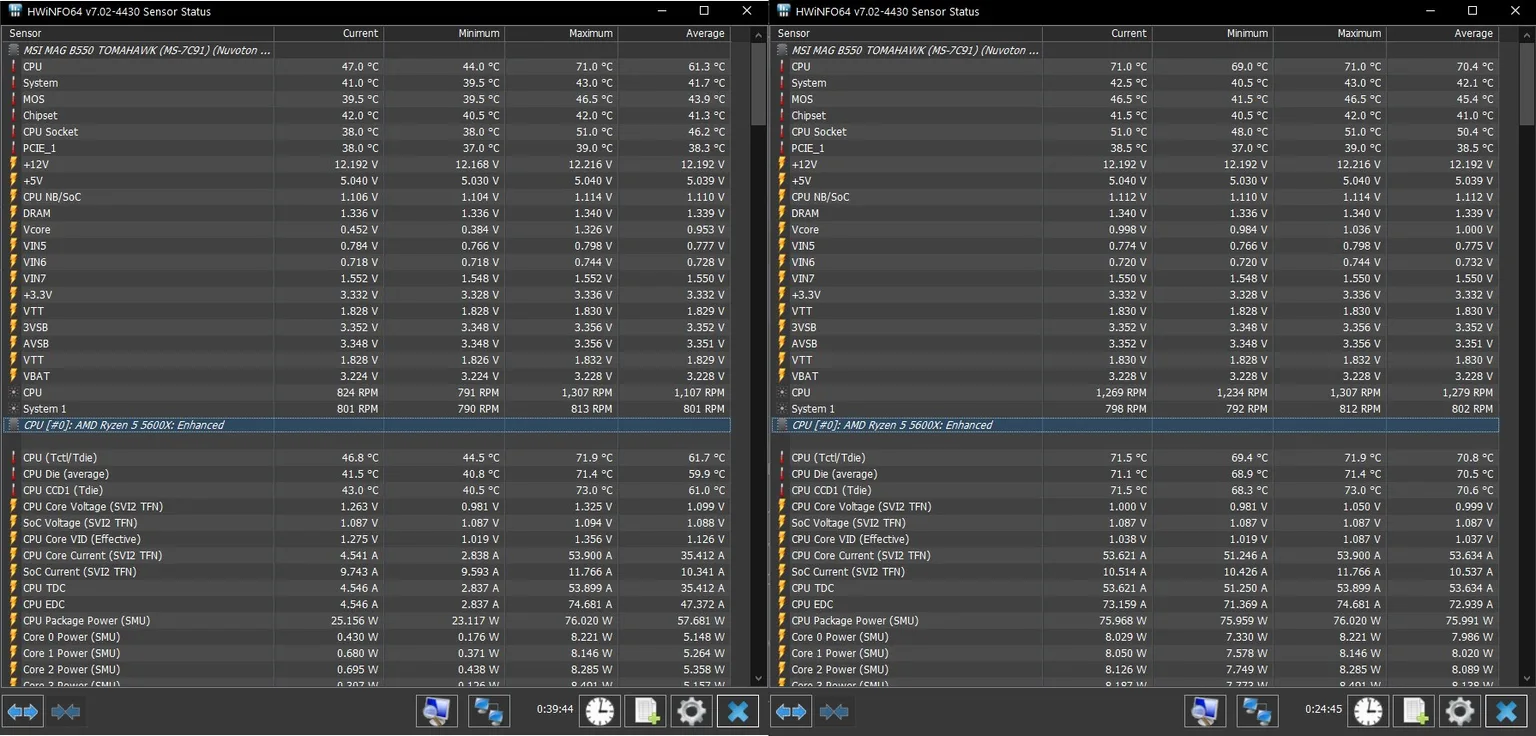
Task Manager does not expose CPU die temperature. BIOS hardware monitor pages are useful for idle checks right after boot, before Windows loads.
Other tools
- Core Temp — lightweight tray readout; good for quick checks.
- Ryzen Master (AMD) / Intel XTU (Intel) — vendor tools; useful for confirming TjMax proximity and power limits.
- Cinebench 2024 (10-minute multi-core run) — realistic sustained load to find your ceiling without Prime95’s artificial heat spike.
- macOS — iStat Menus or Intel Power Gadget (Intel Macs) for die-adjacent readings.
- Linux —
sensors(lm-sensors) after loading the right chip driver; values vary by distro and kernel.
Stress testing the right way
Short benchmarks lie. For a true maximum:
- Note idle temp after 5 minutes at desktop.
- Run Cinebench multi-core or your heaviest usual workload for 10–20 minutes.
- Record peak package temp and whether clock speed drops over time (throttling).
If temps climb for the first few minutes then flatline with falling clocks, you are hitting thermal or power limits — not “still warming up.”
When temperatures are too high
| Symptom | Likely cause |
|---|---|
| Sustained 90°C+ (194°F+) in normal games on desktop | Insufficient cooler, dust, paste, or case airflow |
| Fast spike to throttle within 2–3 minutes of load after cleaning | Dried thermal paste or uneven cooler mount |
| Good idle, bad load; GPU also very hot | Shared case heat — see VRAM / GPU load |
| One side of AIO radiator cold, CPU throttling | Possible pump failure — rare but urgent |
Fix airflow and paste before buying a new cooler. Cleaning and repasting often drops temps 5–15°C (9–27°F).
Cooler sizing vs CPU TDP (2026)
High-end desktop CPUs routinely exceed paper TDP:
- Intel Core Ultra 9 285K — up to 250 W power; plan for 360 mm AIO or top-tier air in mid-tower cases.
- AMD Ryzen 9 9950X3D — 170 W base, 220 W+ under PBO; AMD recommends liquid cooling; 240 mm minimum, 360 mm for quieter sustained loads.
- Mid-range chips (Ryzen 7 / Core i5–i7) — quality 120–240 mm AIO or good dual-tower air usually suffices.
Undersized cooling does not always show at idle — it shows after 20 minutes of gaming.
Laptops vs desktops
Laptops trade thickness for thermals:
- 75–95°C under gaming is common; thermal paste from factory and shared heat pipes with the GPU limit headroom.
- Use a hard flat surface; soft bedding blocks intakes.
- Power/quiet modes in OEM software cap watts and lower temps at the cost of FPS.
- Undervolting (where supported) can shave 5–10°C — test stability carefully.
Do not compare laptop die temps directly to desktop tower reviews.
Relationship to GPU thermals
CPU and GPU share case air. A hot GPU dumping heat into the chassis raises CPU temps even when the CPU cooler is fine. Checking VRAM and GPU load separately helps isolate which component is working hardest.
Bottom line
There is no single magic number for every chip:
- Desktop gaming: aim for under 80°C (176°F); up to 85°C (185°F) is acceptable on many modern CPUs.
- AMD Ryzen under full load: 85–95°C can be normal boost behavior — verify you are not throttling, not just reading a high number.
- Intel / sustained 90°C+ in games: treat as a cooling or airflow problem.
- At or above TjMax for minutes: throttling is guaranteed — fix cooling before upgrading silicon.
Use logging during real games and 20-minute sessions, not only short benchmarks. Heat-soak is what matters for marathon sessions.
Related hardware & software guides
More PC guides live on our PC & Tech hub, covering resolutions, hardware tuning, and software topics.